Affinity groups bring people together around shared interests and communities.
They serve as a central hub, consolidating links to Slack channels, Q&A forums, and knowledge base resources. Each group can also enable a members’ email list for direct communication.
Coordinators can manage the group by editing its page, broadcasting announcements and events, emailing members, and adding additional coordinators.
Editing your Affinity Group
Add Additional Coordinators
Type a few letters of the name of someone with an account, and then select from the list of names.
Add Tags
Add relevant tags so that people can find groups relevant to them on the affinity group page and through searches. This step is important to help people find your affinity group.
Summary
Include a short description that will appear on the Affinity Groups page. This summary should be concise so that people can quickly scan the list of groups. (ideally 160 characters, or less).
Description
Provide a longer description that will be displayed on the individual affinity group page with information about the intent of the group, what type of communications you expect the group will use, and how often.
Adding Knowledge Base Resources
Share helpful links with your group—include up-to-date documentation and other information you want your community to see. To display resources on your affinity group page, you create them on the Knowledge Base resources page, and then edit your page to include them.
Add a new resource:
- Go to the Knowledge Base Resources page and use the Add a Resource button.
- Add a description of the resource
- Add a link title and URL for the resource
- Use the "Suggest Tags" button to get tag suggestions based on the description
- An admin will "Approve" the resource and then you can add it to your page. If you associate a KB Resource with an affinity group it will be added to the page after it is approved.
Add the resource to your affinity group page, after an admin has approved it:
- Go to your affinity group page and choose Edit (you need to be logged in)
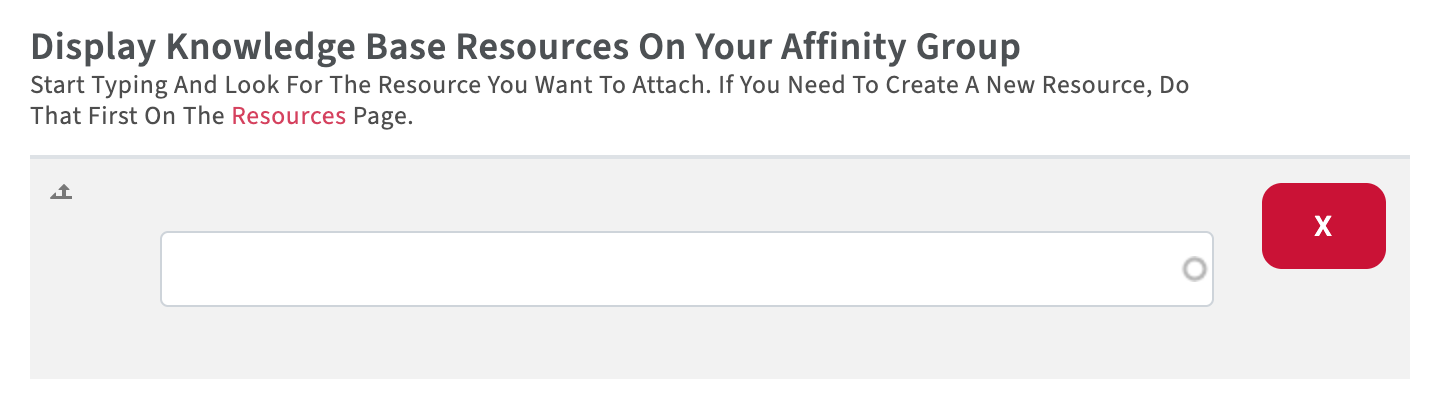
- The Knowledge Base Resource section is at the bottom of the page, start typing the resource name and select it to add to your page. Add more resources if you want.
Communications Channels
Slack
Provide a link to your Slack group if you have one.
- To get a direct link to a Slack channel: Right-click (or Control-click) on the channel name in Slack.
- Select “Copy” > “Copy Link.” The link will look something like this: https://yourworkspace.slack.com/archives/CHANNELID
- The link will look something like this:
https://yourworkspace.slack.com/archives/CHANNELID
Q&A Platform
Provide a link to ask.CI , StackExchange, or other q&a platform specific to your affinity group. If you include a link to your ask.CI category, recent topics posted in your ask.CI category will be displayed on your affinity group.
Contact us for help getting setup on ask.CI or discourse.openondemand.org (ACCESS members | Other communities).
Github Organization
Provide a link to your Github organization, if you have one.
Email List or Email Contact
Provide a full URL to the email list or email contact for your affinity group.
i.e. https://mydomain.com/our-email-list/ or example [at] email.com (mailto:example[at]email[dot]com)
Affiliating Resources
Recommended Resources
Community groups can recommend infrastructure resources for group members and add a description for why a particular resource is recommended. We will be adding more infrastructure resources used by the community.
Allocated CiDeR Resources
ACCESS RP Affinity Groups are associated with CiDeR resources. Users with allocations on these resources automatically become members of the group.
Affinity Group Members
Joining a Group
People can use the join buttons to join affinity groups. They will be added as a member and receive email notifications. Members can leave affinity groups, and re-join, at any time.
View Members
Coordinators have a button on the bottom of their affinity group page to see a list of member names, roles, and emails, with the option to download a csv.
Email the Affinity Group
Coordinators have a button on the bottom of the affinity group page to email the group. The email subject will indicate that the email is from your affinity group.
Enable a Members Email List
Contact us to enable a members email list for direct communication between affinity group members (ACCESS members | Other communities). You will be able to select the prefix for your affinity group (e.g. mygroup [at] lists.connectci.org (mygroup[at]lists[dot]connectci[dot]org)) and customize the welcome message and the footer for your group.
ACCESS and Open OnDemand: Events and Announcements
Find out more about adding events or ACCESS announcements to the website.
Adding events and announcements to your Page
You can add an event or announcement that you created to an affinity group that you coordinate.
- Edit one of your events or announcements.
- Add an affinity group that you coordinate.
- Check visibility the box “on your Affinity Group”.
- Press the save button.
- The event or announcement will be listed on your affinity group page.
Broadcasting events and announcements to the email list
- Edit one of your events or announcements.
- Add an Affinity Group that you coordinate.
- Check the box “Email to your Affinity Group”.
- Press the save button.
- The event or announcement will be emailed to your affinity group members.
- Events and Announcements can only be added to one Affinity Group